Ask Questions – Share Advice - Keep The Trip Moving
Topics
Itinerary Help
Topics
Itinerary Help
Filter topics
All topics
How many events can you realistically see in one day?
This is the #1 question first‑time Olympics goers get wrong. The answer: 2, maybe 3 events per day maximum – if you plan perfectly. 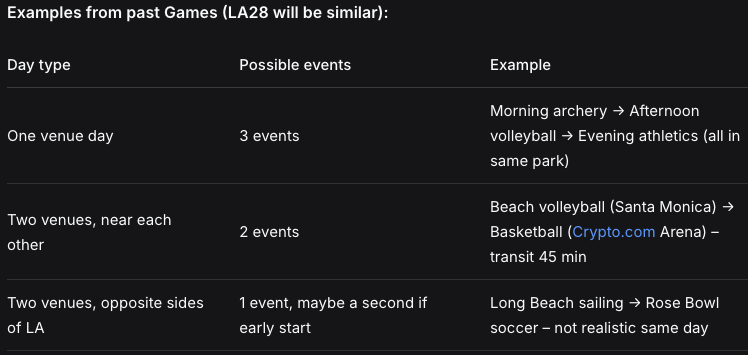 How MyLA28 helps: The premium builder shows you a “traffic color” between venues (green = easy, red = don’t try). It also adds a default 90‑minute buffer for security, walking, and food. You can adjust it. Rule of thumb: Never book an event that starts less than 3 hours after a previous event ends, unless they’re in the same venue or next door. Share your own ambitious plans below – let us reality‑check them before you buy tickets.
What happens if I create a full schedule with my liked events before going premium?
Nothing gets deleted - it only gets better! - Once you go premium, you can view all of the LIKED EVENTS filtered by day, event types or sessions. 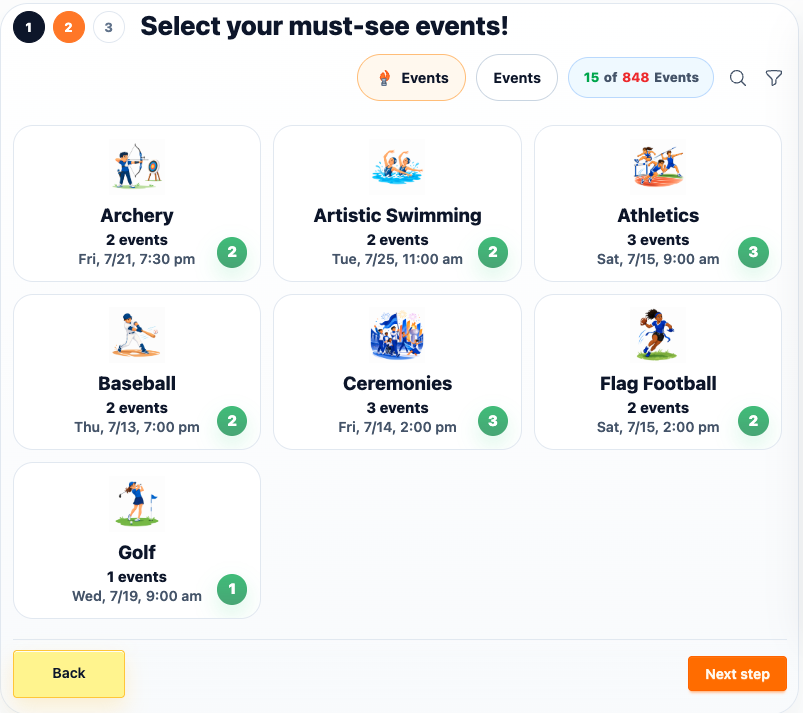 - As you create your itinerary, choose you must see events and the system will recognize conflicts between those and the other events you have liked. - Ensures that you are not double booking or trying to see events that are too far away and would not be a good idea to try and attend it. Bottom line: Start for free today. If you later feel the anxiety of “can we really make that transfer?” – upgrade and instantly see the answer.
How to avoid double‑booking when events are on the same day!
One of the biggest headaches in Olympics planning is accidentally scheduling two events that are physically impossible to attend. There is a huge difference between public transportation times and driving/Uber/Lyft travel times. So it may be worth the extra money to take the rideshare if it gets you to your must see event on time. How MyLA28 prevents this: - The premium itinerary builder checks travel time between actual venue locations (using real‑time LA traffic patterns- Public Transportation Vs. Driving). - If you try to add a second event that overlaps with your first, you’ll see a red “conflict” warning. - If the time would be really close to being able to attend, you will see a yellow warning. - You can still override the yellow (Going to be tight) warnings. Manual workaround (free users): Use Google Maps to measure drive time + 30 min for security/walking. Never book two events less than 3 hours apart if they’re in different zones (e.g., Long Beach → Inglewood). Pro tip for premium users: Put in the address where you're going to stay and the AI will calculate travel times to the event based off of that location. Share your own close‑call stories below! Let’s help each other learn.
If you don't know what you want to see, use the Liked Events process
If you're not sure exactly what you want to see and would like to explore different scenarios, you can use LIKED EVENTS process to build a list of everything that interests you. This initial list has no scheduling conflict logic, so you can include multiple events that occur at the same time. Once you have your complete list, you can start the itinerary process. At that point, we'll apply scheduling logic to ensure you don't double-book yourself for any time slots.
Replies
0 comments
What happens if I create a full schedule with my liked events before going premium?
Nothing gets deleted - it only gets better!
- Once you go premium, you can view all of the LIKED EVENTS filtered by day, event types or sessions.
- As you create your itinerary, choose you must see events and the system will recognize conflicts between those and the other events you have liked.
- Ensures that you are not double booking or trying to see events that are too far away and would not be a good idea to try and attend it.
Bottom line: Start for free today. If you later feel the anxiety of “can we really make that transfer?” – upgrade and instantly see the answer.